Get it on Google Play

YOUR BIKE. YOUR SCREEN. YOUR SMARTGT.

A riding experience.
Like no other.

Android Auto. AI voice assistant.
Your factory screen.

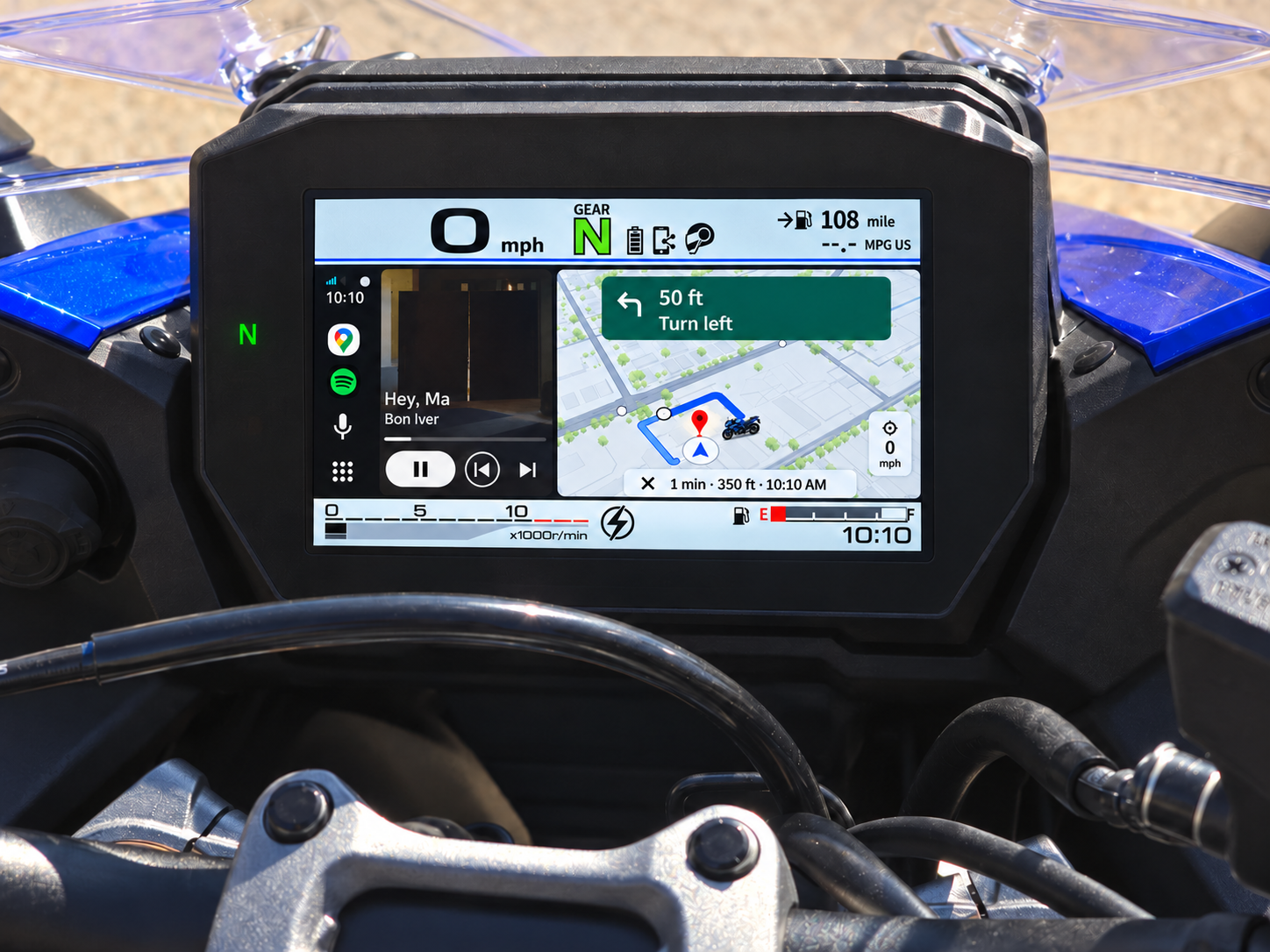
Maps, music and your phone’s assistant, operated through your bike’s existing handlebar controls. No extra display to mount.

Android 12+ · Factory mySPIN equipment
7 days of full functionality. Free version after.

SUZUKI / GT + GXAndroid Auto
Android Auto illustrated on a Suzuki factory TFT

02 / YOUR RIDE. YOUR CALL.

Sometimes, you
just want to ride.

Keep your own Home screen on the TFT. Call on your phone’s AI assistant when you want directions, music or an answer.

Suzuki handlebar control illustration

Your controls.
Your choice.

Hold Left on SmartGT Home. Choose Voice Assistant or Voice Note for this hold in the app.

Voice assistance needs Android Auto running in the background, a compatible headset and voice setup.

A LITTLE HELP, WHEN YOU WANT IT

Example request / directions

“Take me to the nearest petrol station.”

Example request / music

“Play my riding playlist.”

Good thought? Keep it.

The idea that came on a quiet road. Where you parked. The name of the rider you just met.

Record a voice note while it’s fresh. Find it on your phone after the ride.

Setup video — coming soon

03 / YOUR BIKE, MADE YOURS

Made for
your GT / GX.

Check the fit. Then picture SmartGT Home on the motorcycle you ride.

SUZUKI

GSX-S1000
GT / GT+ / GX / GX+

GT / GT+2022 onward

GX / GX+2024 onward

Compatible factory mySPIN equipment required.

And your phone?

Android 12 or newer
Android Auto and Google services

What to check before connecting

Confirm your motorcycle has the compatible factory mySPIN system. Select your exact model in SmartGT and complete setup while parked.

Picture it on your bike.

SMARTGT HOME
Pick your color

Interactive Home illustration · Paint colors are approximate.

Choose your bike artwork and color, or add your own photo in the app. Keep your background still or add motion.

04 / TAKE IT FOR A RIDE

Try everything.
Keep what you need.

7 days with full SmartGT functionality. After the trial, the app returns to the free version unless you choose paid access.

Get it on Google Play
01

First, try it all.

Android Auto and voice assistance on your compatible factory TFT, plus SmartGT Home and notes.

7-DAY FULL TRIAL


02

The free version stays.

Your personalized Home, notes and phone Preview remain available after the trial.

FREE AFTER THE TRIAL
03

Keep AA & voice on the bike.

Choose paid access to continue Android Auto and assistant use on the motorcycle.

OPTIONAL PAID ACCESS

Price and purchase terms are awaiting final approval.

05 / READY FOR YOUR NEXT RIDE

A little setup.
A lot to look forward to.

Setup video — coming soon
  1. 01

    Prepare your phone.

    Install SmartGT and follow guided setup. Enable Android Auto developer mode and its head unit server.

  2. 02

    Connect your motorcycle.

    Choose your exact model and motorcycle TFT in SmartGT. Open it through your bike’s mySPIN menu.

  3. 03

    Make it your ride.

    Set up your Home screen and button actions. Finish your first connection while parked.

A few things before you head out.

Do I need another display or dongle?

No extra display or dongle is required for a supported setup. SmartGT uses your Android phone and a compatible factory TFT.

Will it work with my headset?

Audio and voice depend on your phone, headset and how they’re connected to the phone or motorcycle. Follow the setup guide for your combination.

Where do my notes go?

Your SmartGT notes stay on your phone, ready to revisit after your ride.

SmartGT stops when my screen locks.

Some phones limit apps in the background. Check the settings for your phone.

Phone battery help

Where can I get help?

Email [email protected] with your motorcycle model and year, phone model, Android version, app version and what happened.

Keep SmartGT running

Phone battery and background settings. Choose your brand for a short checklist.

Open the phone settings guide

If SmartGT stops when your screen locks, disconnects after a few minutes, or does not reconnect, your phone's battery settings are worth checking.

Menu names vary by phone, software version and country. These steps are based on published guidance and have not been tested on every phone. They may help with background restrictions, but they are not a fix for every connection problem.

Start with these checks

  1. Finish the setup in SmartGT first. Keep Bluetooth and Wi-Fi on while using it with your bike.
  2. Open Settings > Apps > SmartGT > Battery or App battery usage. Allow background usage and choose Unrestricted, No restrictions or Don't optimize, if available.
  3. Check the same battery setting for Android Auto. Some phones hide or lock this setting because Android Auto is a system app. If it is unavailable, skip it.
  4. On SmartGT's app information page, turn off Pause app activity if unused or Remove permissions if app is unused, if shown. Turn off Battery Saver or Power saving while riding.

Choose your phone

AsusROG Phone and Zenfone
  1. In Settings > Battery > Auto-start Manager, allow SmartGT. On older phones, look in Mobile Manager. Allow Android Auto too if it is listed.
  2. Look for Background app manager or Background app management. Exclude SmartGT and Android Auto from restrictions where the phone allows it.
  3. Turn off X Mode in Quick Settings or Armoury Crate while using SmartGT. Check Game Genie or Mobile Manager for memory-cleaning options that close background apps.
  4. After restarting your phone, check the app battery and auto-start settings again. Some users have reported that these settings reset. If Recent apps offers Lock or Keep open, use it for SmartGT.
Back to phone brands
Xiaomi / Redmi / POCOHyperOS and MIUI
  1. Open Settings > Apps > Manage apps > SmartGT. Under Battery saver or Battery, choose No restrictions.
  2. Turn on Autostart or Background autostart for SmartGT. If it is not on the app page, search Settings for autostart.
  3. Check these options for Android Auto too, if listed. Use Balanced or normal battery mode while riding rather than Battery saver.
  4. If Recent apps offers a padlock for SmartGT, turn it on so Clear all does not close the app. Recheck the settings after a phone software update.
Back to phone brands
OnePlusOxygenOS
  1. Open Settings > Apps > App management > SmartGT > Battery usage. Turn on Allow background activity.
  2. Turn on Allow auto launch if shown. On some versions, use Settings > Apps > Auto launch instead.
  3. Look for Optimize battery usage and choose Don't optimize for SmartGT. Check the same options for Android Auto where available.
  4. If the problem continues, check Battery > More settings for Sleep standby optimization and try turning it off while using SmartGT. Use Lock in Recent apps if offered, and recheck after a software update.
Back to phone brands
SamsungGalaxy / One UI
  1. Open Settings > Apps > SmartGT > Battery and choose Unrestricted, if available.
  2. Open Settings > Battery > Background usage limits. On older phones, start with Battery and device care > Battery.
  3. Remove SmartGT from Sleeping apps and Deep sleeping apps. Add it to Never sleeping apps or Never auto sleeping apps if the phone offers it. Some versions hide that list entry once an app is already Unrestricted.
  4. Check Android Auto too if listed. You do not need to stop the phone putting all your other apps to sleep. If Recent apps offers Keep open for SmartGT, you can use it.
Back to phone brands
OPPOColorOS
  1. Open Settings > Apps > App management > SmartGT > Battery usage.
  2. Turn on Allow background activity and Allow auto launch, if shown. Search Settings for auto launch if it is on a separate page.
  3. Repeat for Android Auto where available. Keep Power saving off while riding.
  4. If Recent apps offers Lock, use it for SmartGT. Check that SmartGT is not set to pause when unused.
Back to phone brands
realmerealme UI
  1. Open Settings > Apps > App management > SmartGT > Battery usage. Older versions may use Battery > App battery management.
  2. Allow foreground activity, background activity and auto-launch where these switches are shown.
  3. Remove SmartGT from App quick freeze if listed. Check the same battery and launch options for Android Auto where available.
  4. Keep Power saving off while riding. If the problem continues, check for Sleep standby optimization. Use Lock in Recent apps if offered.
Back to phone brands
vivoFuntouch OS / OriginOS
  1. Search Settings for Autostart. It may be under Apps > Special app access. Allow SmartGT to start automatically.
  2. Under Battery, look for Background power consumption management or High background power consumption. Allow SmartGT to keep running in the background.
  3. Check Android Auto too where available, and turn off unused-app pausing for SmartGT.
  4. If Recent apps offers a lock for SmartGT, use it.
Back to phone brands
HonorMagicOS
  1. Search Settings for App launch. Turn off Manage automatically for SmartGT.
  2. Allow Run in background. If Auto-launch and Secondary launch are also shown, allow those too, then confirm.
  3. Search Settings for Battery optimization, choose All apps, then SmartGT. Choose Don't allow optimization or Ignore battery optimization. This refers to battery restrictions, not denying SmartGT permission to run.
  4. Check Android Auto too where available. You can lock SmartGT's card in Recent apps to protect it from Clear all.
Back to phone brands
MotorolaMy UX / Hello UI
  1. Open Settings > Apps > SmartGT > App battery usage.
  2. Turn on Allow background usage. Tap the row as well as the switch if needed, then choose Unrestricted where offered.
  3. Check Android Auto too where available. If SmartGT still stops while the phone is idle, look under Battery for Improve battery while inactive and try turning it off.
Back to phone brands
Google PixelAndroid
  1. Open Settings > Apps > See all apps > SmartGT > App battery usage.
  2. Allow background usage. If an Unrestricted option is offered, choose it when troubleshooting.
  3. Check Android Auto too where available. Turn off unused-app pausing for SmartGT and keep Battery Saver off while riding.
Back to phone brands
NothingNothing OS
  1. Open Settings > Apps > SmartGT > App battery usage. Allow background usage and choose Unrestricted if offered.
  2. Check Android Auto too where available. Keep Battery Saver off while riding and turn off unused-app pausing for SmartGT.
  3. If your menus differ, search Settings for battery optimization or background usage.
Back to phone brands
SonyXperia
  1. Open Settings > Apps > SmartGT > Battery. Choose Unrestricted or Don't optimize where offered.
  2. Keep STAMINA power saving off while troubleshooting a ride connection, especially a Prefer battery time setting.
  3. Check Android Auto's app battery setting too where available. On older phones, a Power-saving feature list may let you mark SmartGT as Excepted.
Back to phone brands
Tecno / Infinix / itelHiOS / XOS and related software
  1. If your phone has Phone Master, look for Auto-start management and allow SmartGT.
  2. Under Settings > Battery, look for Power saving management for apps. Allow SmartGT to run in the background and check Android Auto where available.
  3. Keep power-saving and sleep schedules that turn off Bluetooth, Wi-Fi or mobile connections disabled during a ride. Menu names vary widely between these phones.
Back to phone brands
HuaweiCheck Android Auto compatibility first

SmartGT's Android Auto features require Google services and a compatible Android Auto installation. Huawei phones without those services cannot use those features. Battery settings will not add Android Auto or make a phone that cannot run Android apps compatible.

Back to phone brands

Still having trouble?

After changing settings, try SmartGT again while parked. If it still disconnects or stops, email support with your phone model, Android version, SmartGT version and what happens when the screen locks. A photo of the battery settings can help if the menu looks different.

[email protected]

YOUR BIKE. YOUR SCREEN.

Your next ride, with SmartGT.

Check your bike